How to add, remove, or update an employee's dependent
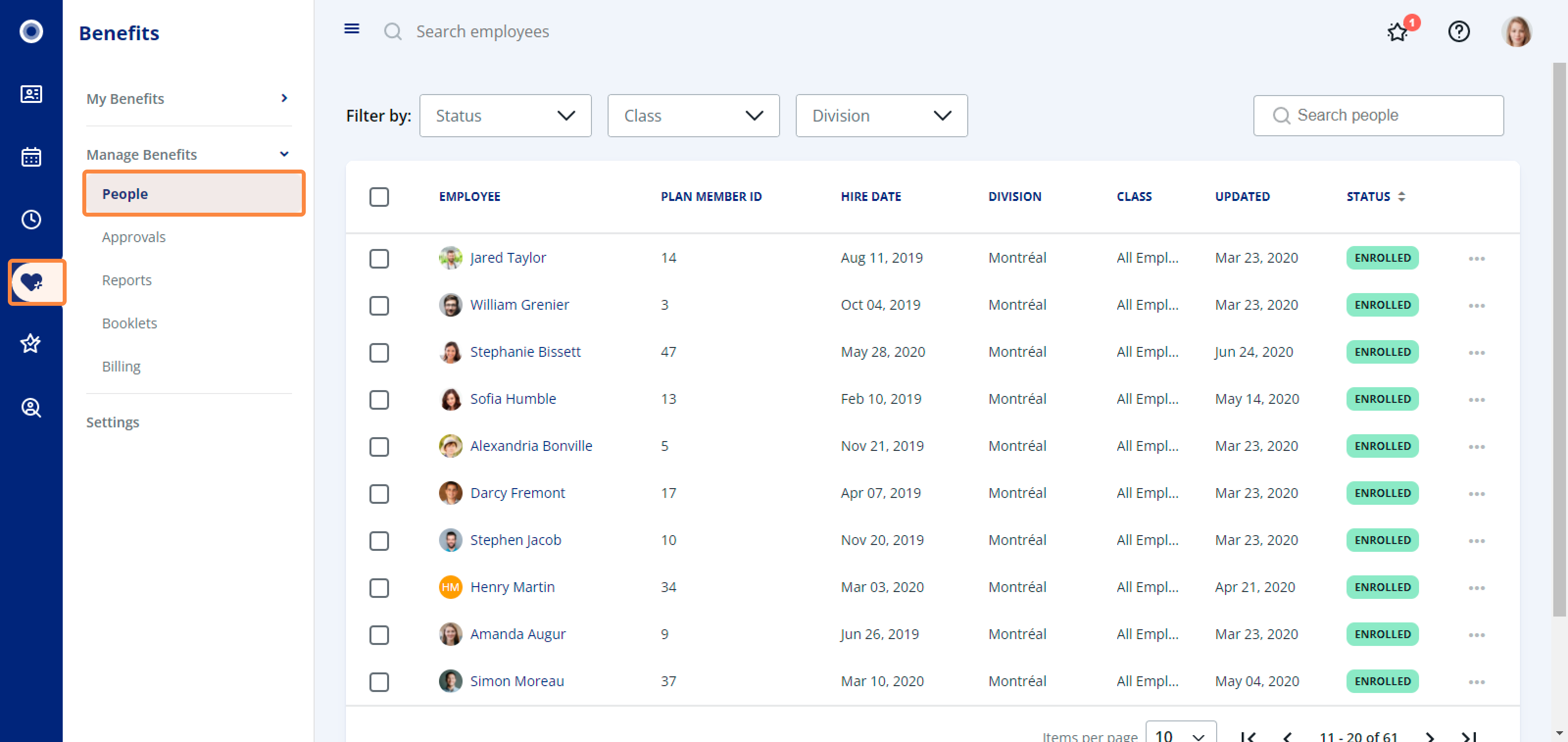
1. Navigate to Benefits, then under Manage Benefits, click People.
Add a dependent
1. Click Add another dependent.
2. Fill in the dependent's details and click Next to add.
3. Select the reason for adding the dependent and add the date of change, then click Confirm.
5. If a spouse has been added as a dependent, complete the coordination of benefits and click Save.
Remove a dependent
1. In the event of a life change, you can edit or delete a dependent. To the right of the dependent's name, click the X icon.
2. Enter the Effective date of change and click Yes to remove the dependent.
3. To reverse the deletion, click Restore. To confirm the deletion of the employee's dependent, click Save.
Update a dependent
1. To edit an employee’s dependent, click the pencil icon to the right-hand side of the employee's name.
2. Update the dependent's information and click Confirm. These changes will reflect on the dependent(s) page of the employee.
3. Here you will see that the changes to the dependent have been updated. Click Save to ensure all changes have been made.